Blog
- Use it to write articles and news that appear on your studio’s website.
- In the menu it is under Website > Blog, with the Articles, Categories, Authors, and Comments tabs.
- The most common task: press + Articolo (+ Article), write the title and text, save the draft, then publish.
What it is
A module for creating and publishing articles, news and editorial content.
Flo's blog manages articles, categories, authors and comments directly in the app. Some studios still use the previous version of the blog, with different screens: this page covers the current version. If you're not sure which one you use, ask support.
It is part of the Digital growth category, because each published article becomes a new public page of the studio's digital identity.
When it is visible
It is visible when the studio wants to publish news, articles, updates or editorial content.
The Blog section is in the Website > Blog menu and appears when the blog is enabled for your studio. Access depends on the user's role and permissions.
Main sectors
- Fitness
- Real Estate
- Enterprise
- Studios with a content strategy
Dependencies
Can be linked to:
The module's sections
The Blog is split into four tabs, always visible at the top.
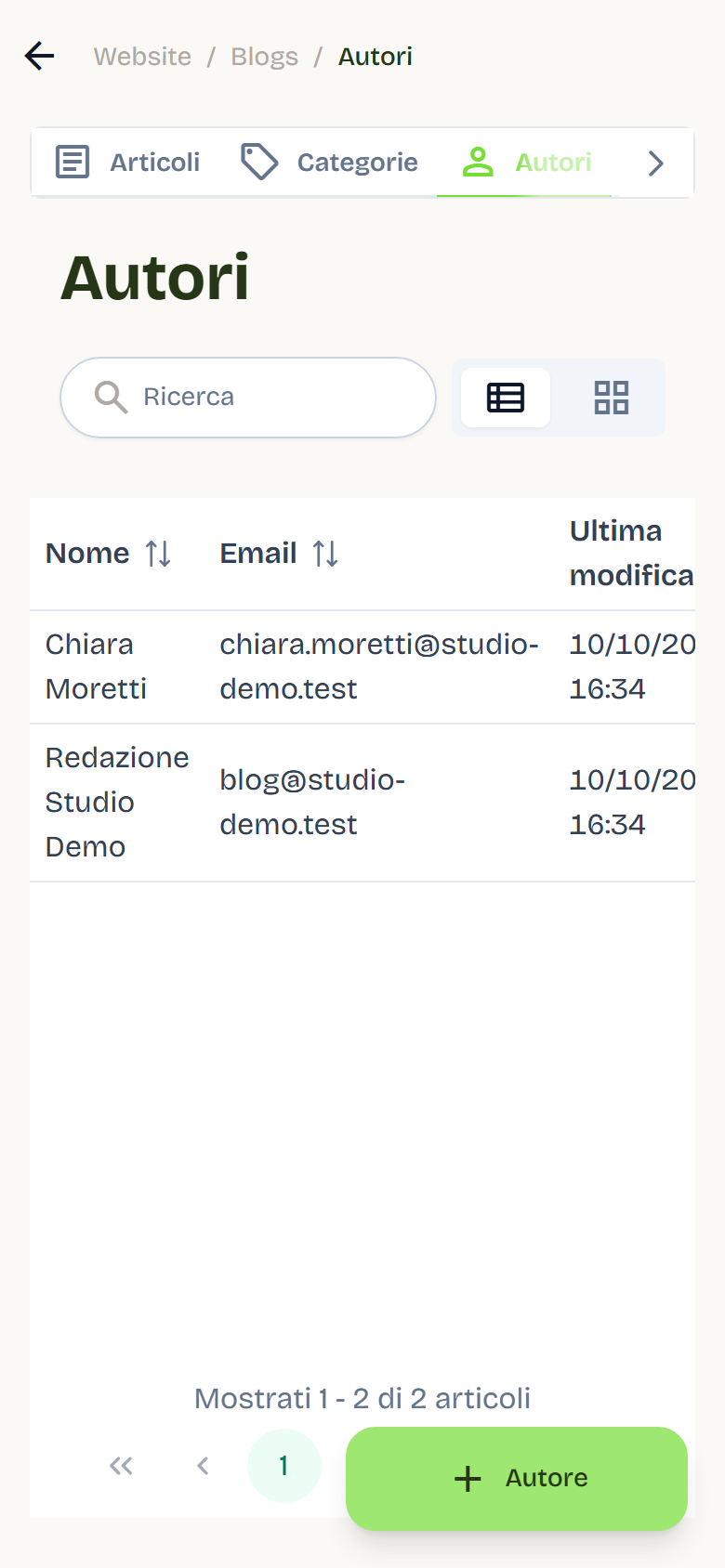
- Articles: creation, editing and publishing.
- Categories: article classification.
- Authors: bylines and avatars.
- Comments: comment and report moderation.
Creating an article
- Open Blog and stay in the Articles tab.
- Press + Articolo (+ Article) to create a new one.
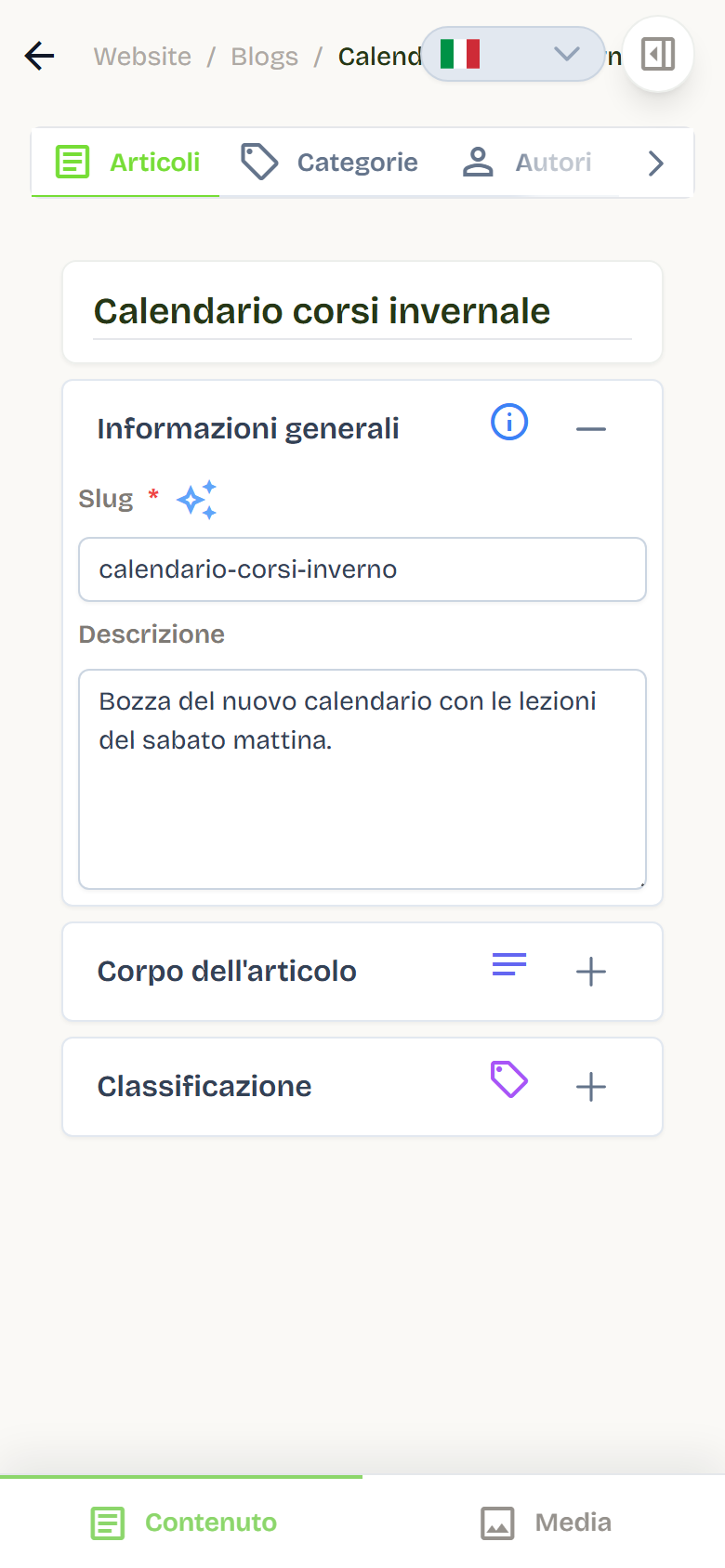
- Fill in Title, Description and Slug (under Informazioni generali, General information): the slug is the last part of the article page's address, and Flo creates it from the title.
- Write the Article body with the editor.
- Under Classification choose the Category, one or more Authors and any Related articles.
- Under Media Items upload the Cover image.
- Fill in the Cover alt text: it is used by screen readers and search engines. Leave it empty only if the image is decorative.
- Save the draft.
To save, title and slug are required; you can complete the rest of the content later.
Draft and publishing
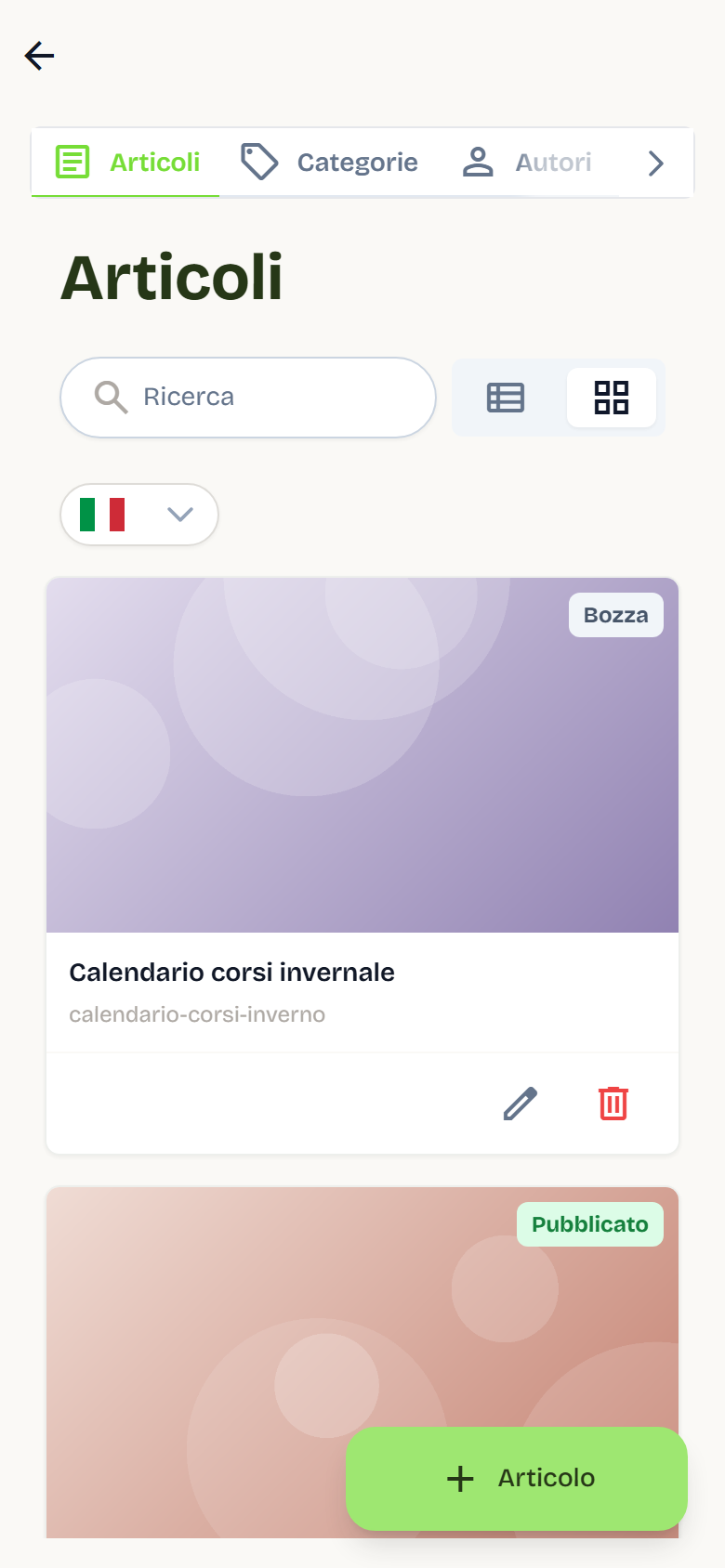
Each article can be in Draft (visible only in administration) or Published (online on the site).
Practical rules:
- Save safeguards the draft; publishing is a separate action.
- On an already-published article, saving creates a pending draft: the site keeps showing the online version until you choose Publish Changes.
- Discard draft discards unpublished changes and restores the online content.
- The Visibility on Site toggle acts immediately on the saved state: Visible publishes, Hidden removes the article from the site (with confirmation). Unsaved changes stay in the form and are not published.
- In the list, the state and the pending-changes badge help you understand what is online.
The slug can no longer be changed after publishing: shared links keep working.
Categories and authors
Categories: name, slug and description. They can be translated into the site's languages.
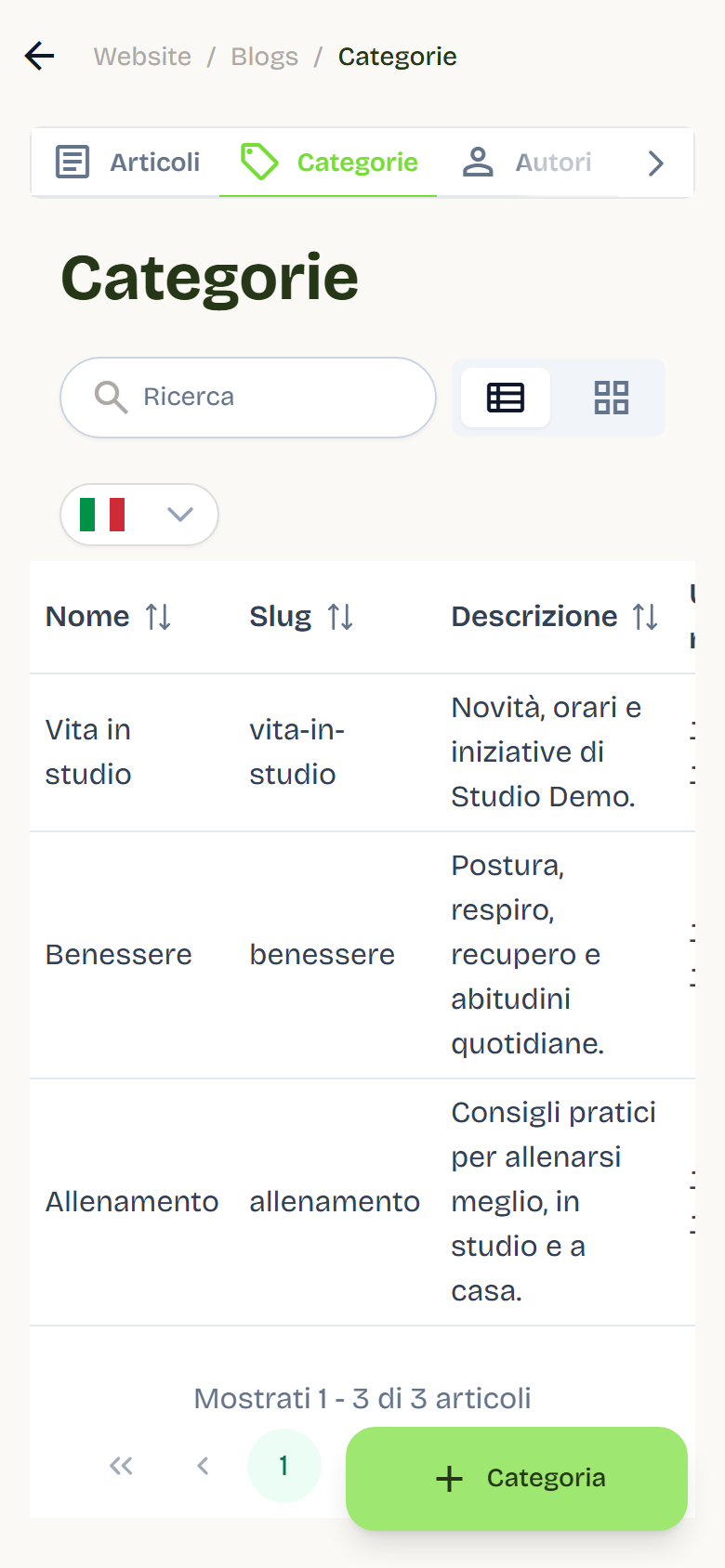
Authors: name, email and avatar. They are not translated and apply to all languages.
You can create categories and authors from their tab or on the fly from the article editor.
Comments and moderation
Comments arrive from the site and require an authenticated visitor. New comments are Pending.
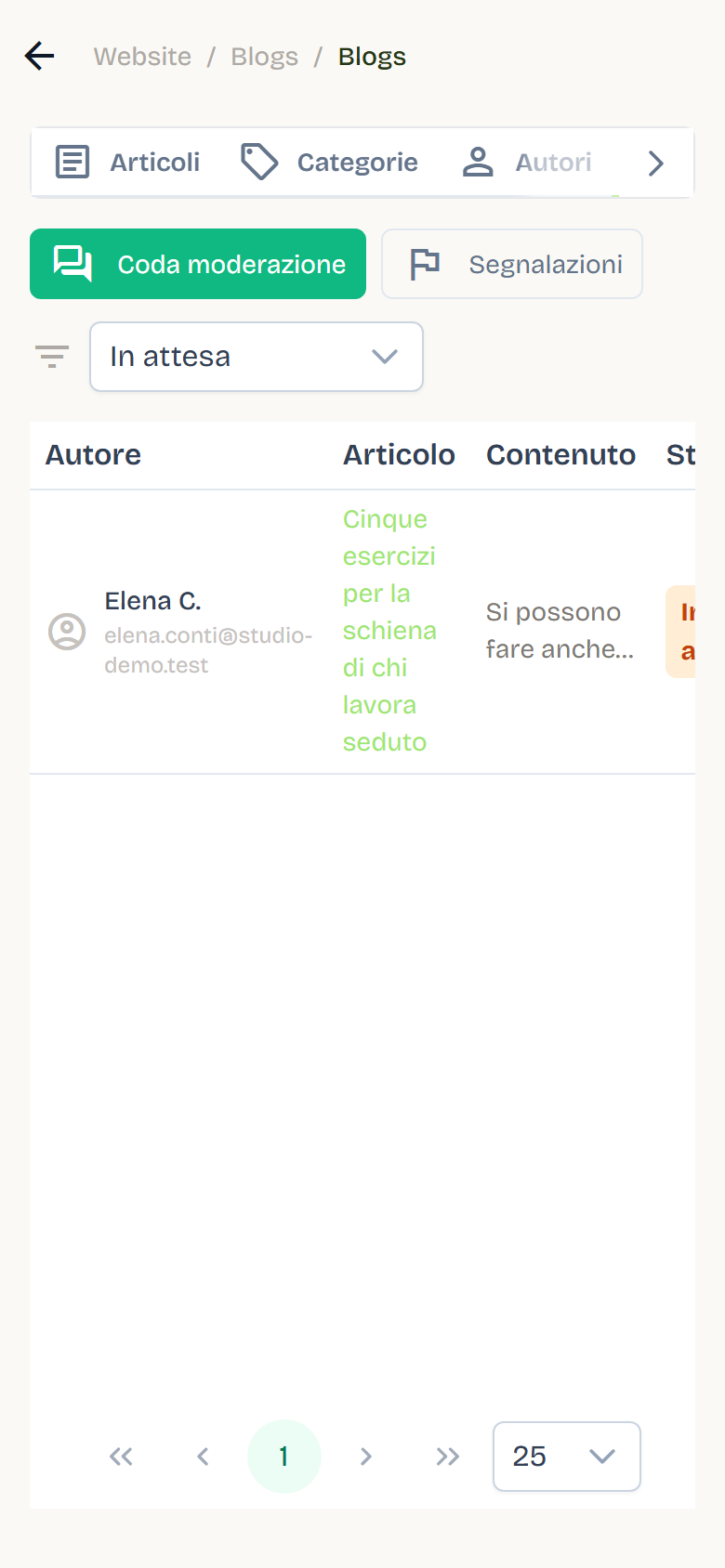
From the Comments tab you can:
- in the Coda moderazione (Moderation queue) view, filter by state: Pending, Approved, Rejected, Blocked, All;
- Approve, Reject, Block/Unblock or Delete a comment;
- open the detail view to read the full text and reach the article;
- in the Reports view, resolve reports sent by users.
Only approved, non-blocked comments appear on the site.
Translations
Articles support multiple languages: each language has its own version, with dedicated title, slug, description and body.
- The first version to publish is the one in the main language.
- From the editor you can then create versions in the other languages and translate them manually or with the help of AI Translate.
- Each version is published independently.
Details in Multilingual.
Newsletter
The blog feeds the newsletter of the Communication module:
- in Communication > Messages > Automations choose the Blog template to send (or test-send) a newsletter for the latest published article;
- recipients are contacts with consent, divided by language, falling back to the main language;
- if there is no published article in the main language, sending does not start.
Best practices
- Publish only complete articles: title, description, cover image and alternative text.
- Use a clear cover image consistent with the blog's tone.
- Always assign category and authors: they help navigation and credibility.
- Regularly check pending comments and reports.
- Avoid changing the slug after publishing: shared links would break.