Company and organization
Basic company settings are managed from Administration, in the Organization section. From there you can reach the business data, contacts, locations, and linked configuration areas.
Organization areas
In Administration > Organization you will find these tabs:
- Activity: business profile, booking rules, and information for clients.
- Services: offered services and related settings.
- Locations: places where activities take place.
- Brand identity: logo, colors, fonts, and brand assets.
- App experience: dashboard, access, languages, and app installation.
- Access and permissions: organization owners and module visibility for the Pro role.
Who sees the tabs:
- Admins and SuperAdmin see all areas.
- Pros sees the areas enabled for their role; visibility is configured in Access and permissions.
- If a tab does not appear, the corresponding module or feature is not active for the configuration.
Further reading: Services, Brand and identity, Dashboard and home, Access and permissions.
Business data
- Open Administration > Activity.
- In the Profile tab, check and update:
- Activity name;
- Public email;
- Phone number: enter it in international format, because it is also used for WhatsApp;
- Main location: choose from the locations configured in Locations.
- Press Save activity details.
Notes:
- If no locations are configured, the page shows Go to Locations so you can create them.
- Business data is used in the booking flow and in communications to clients.
- Editing is reserved to Admins and SuperAdmins; Pro users can view the page if enabled by the policy.
Slug and description (SuperAdmin only)
The organization Slug and Description fields appear only for SuperAdmins and carry the [not used] label: they are no longer used in the current experience.
Locations
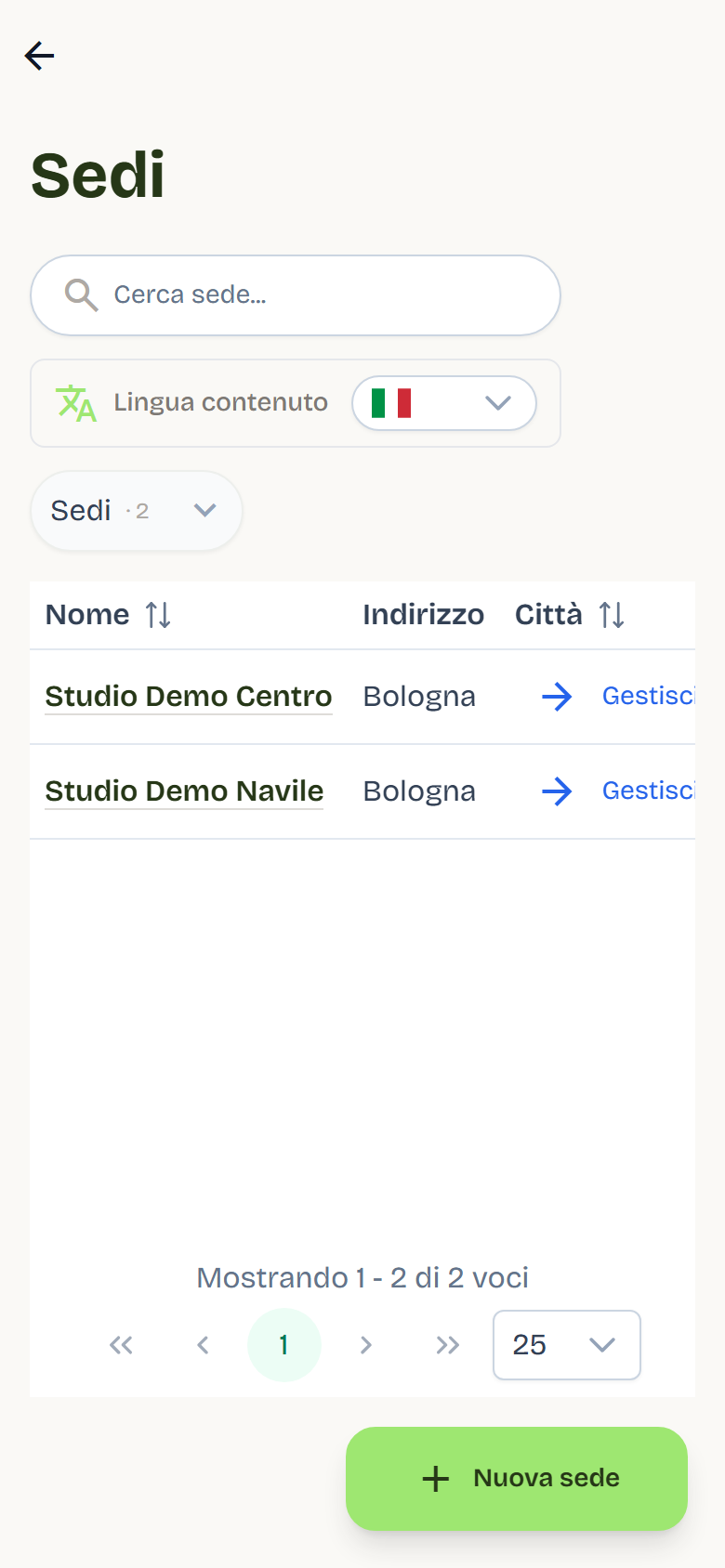
From Administration > Organization > Locations you see the list of locations with address, city, and postal code. Use + New location to add one and Manage to open one and edit it.
Location detail
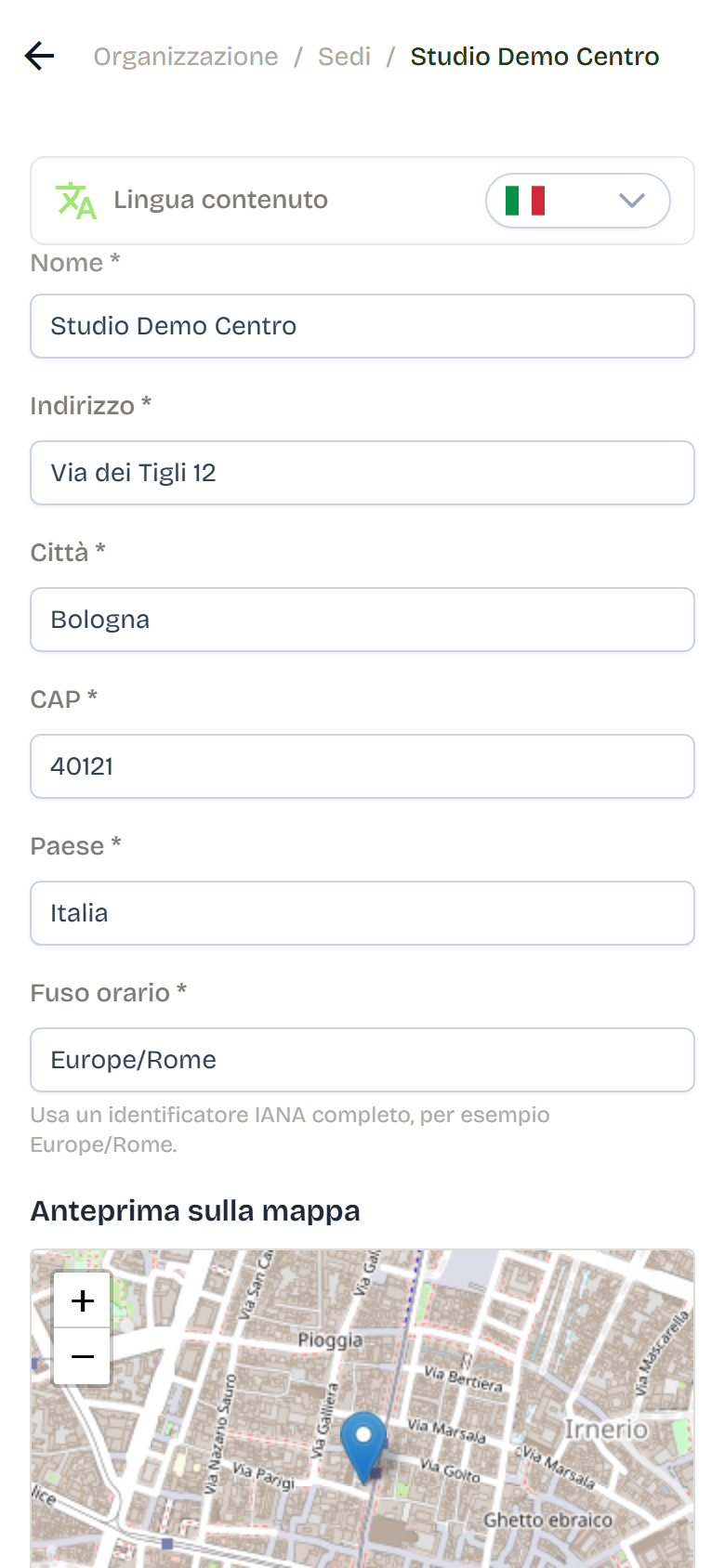
On the location page you fill in Name, Address, City, Postal code, Country, and Time zone (for example Europe/Rome). The map preview confirms that the address was found.
Booking rules and information for clients
Booking notice, refund notice for cancellations, daily limit, reminders, and information for clients are set in Organization > Activity, Bookings tab: see Activity. The booking confirmation email is set up by the Flò team: to change it, ask support.
For daily operation see Bookings.
Organization owners
Owners are the users responsible for the organization and for administrative communications.
- They are managed in Administration > Access and permissions, in the Owners tab.
- Admins and SuperAdmins see the list; only SuperAdmins can add or remove owners.
- To add an owner, press Add Owner and search for the user by name, email, ID, or phone number.
Technical configuration editor
The technical configuration (theme and overall look of the app) is managed by the Flò team and does not appear in the menu: if you need a change, ask support. For logo, colors, and brand assets use Brand and identity.
Flò plan
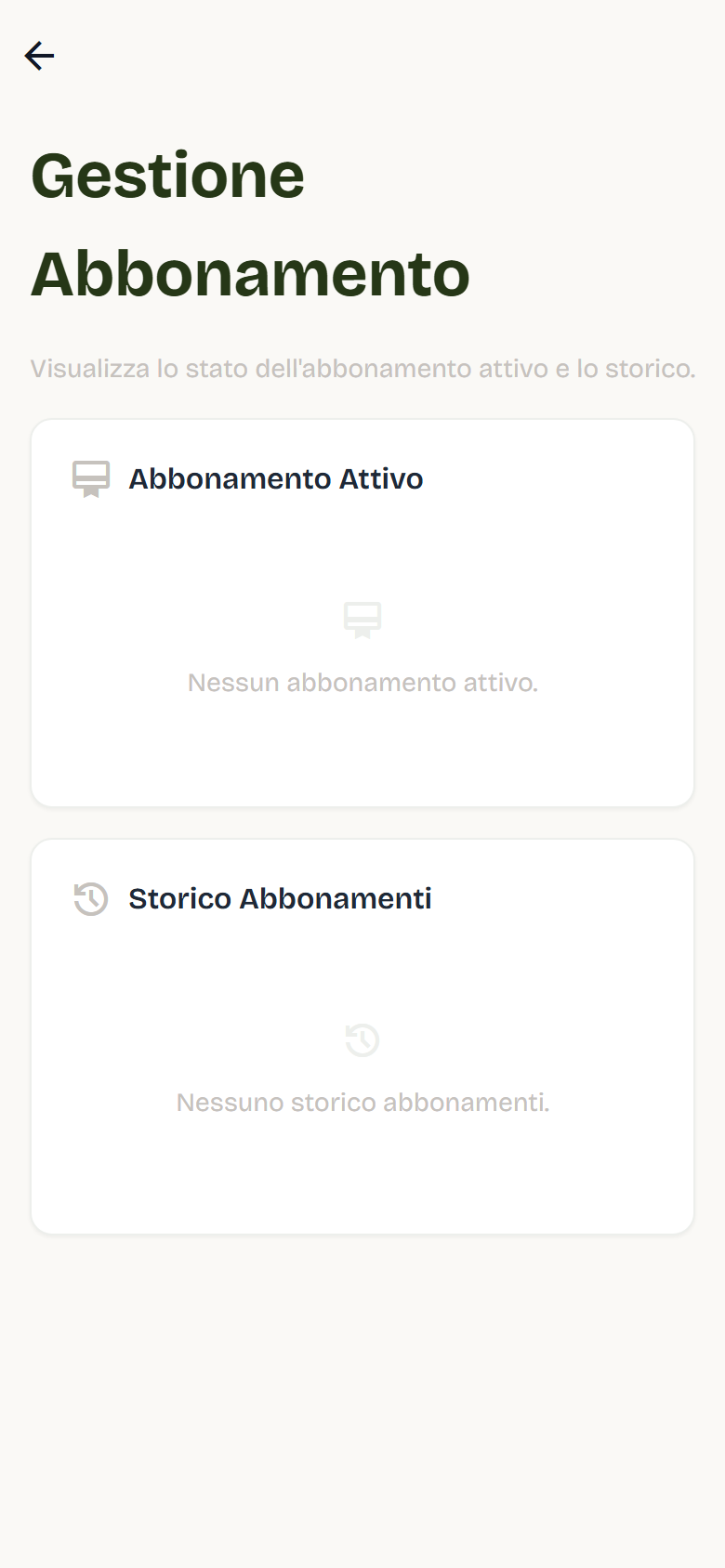
Administrators open Flò Plan from the profile menu to see the Subscription management page, with the active Flò subscription and the plan history.
Who can see these sections
| Area | Visibility |
|---|---|
| Activity | Admin and SuperAdmin; Pro if enabled |
| Services | Admin and SuperAdmin; Pro if enabled |
| Locations | Admin and SuperAdmin; Pro if enabled (creation and editing reserved to Admins) |
| Brand identity | Admin and SuperAdmin; Pro read-only, if enabled and if your Flò space uses your own brand |
| App experience | Admin and SuperAdmin; Pro if enabled |
| Access and permissions | Admin and SuperAdmin |
If you don't see an area, check role visibility in Access and permissions and the features active for the configuration. If in doubt, contact support.