Services
- Here you create and update the services you offer: classes, lessons, treatments, with instructor, location and schedule.
- In the side menu it is under Organization > Services, or from the Services card in Administration.
- The most common task: open a service, change its description or schedule and press Save.
What it is
Module representing one of the dynamic content cases.
It lets the studio manage services, activities or offers visible on the site: title, description, images, professional and location assignment, bookability and schedules.
When it is visible
It is visible when the studio has chosen to manage their services dynamically through Flo.
It appears under Organization > Services in the side menu and under Administration > Services. If you don't see the section, the module is not active or you don't have permission.
- If the Bookings module is active, View schedule also appears.
- With the Subscriptions module active, a bookable service must be linked to at least one plan.
Main industries
- Fitness
- Wellness
- Enterprise
- Businesses with a service catalogue
Dependencies
Part of:
Can be linked to:
Service list
- Open Administration > Services.
- Use the search bar to find a service by name.
- With the language selector choose the language in which title and description are shown.
- Filter by availability: All activities, Bookable or Not bookable.
- Open the service record to edit it.
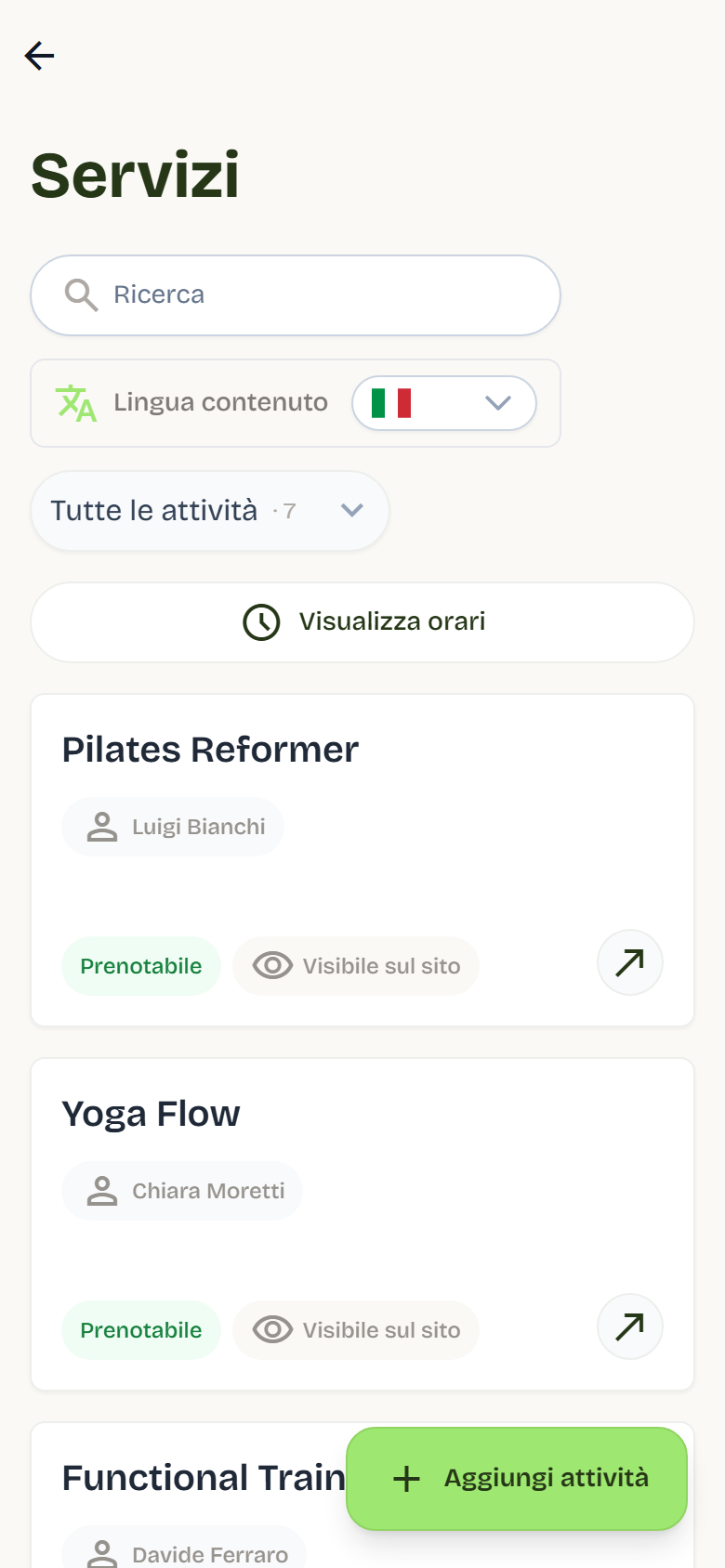
Toolbar actions:
- Add activity: creates a new service.
- Edit Positions: drag services to reorder them, then press Save changes (or Cancel).
- View schedule: opens the weekly schedule with the service context.
Each card shows name, assigned professional and two indicators:
- Bookable or Not available;
- Visible on website or Not visible on website.
A yellow icon flags media to fix.
Creating or editing a service
The editor is divided into four sections: Details, Bookings, Media Items, Schedules.
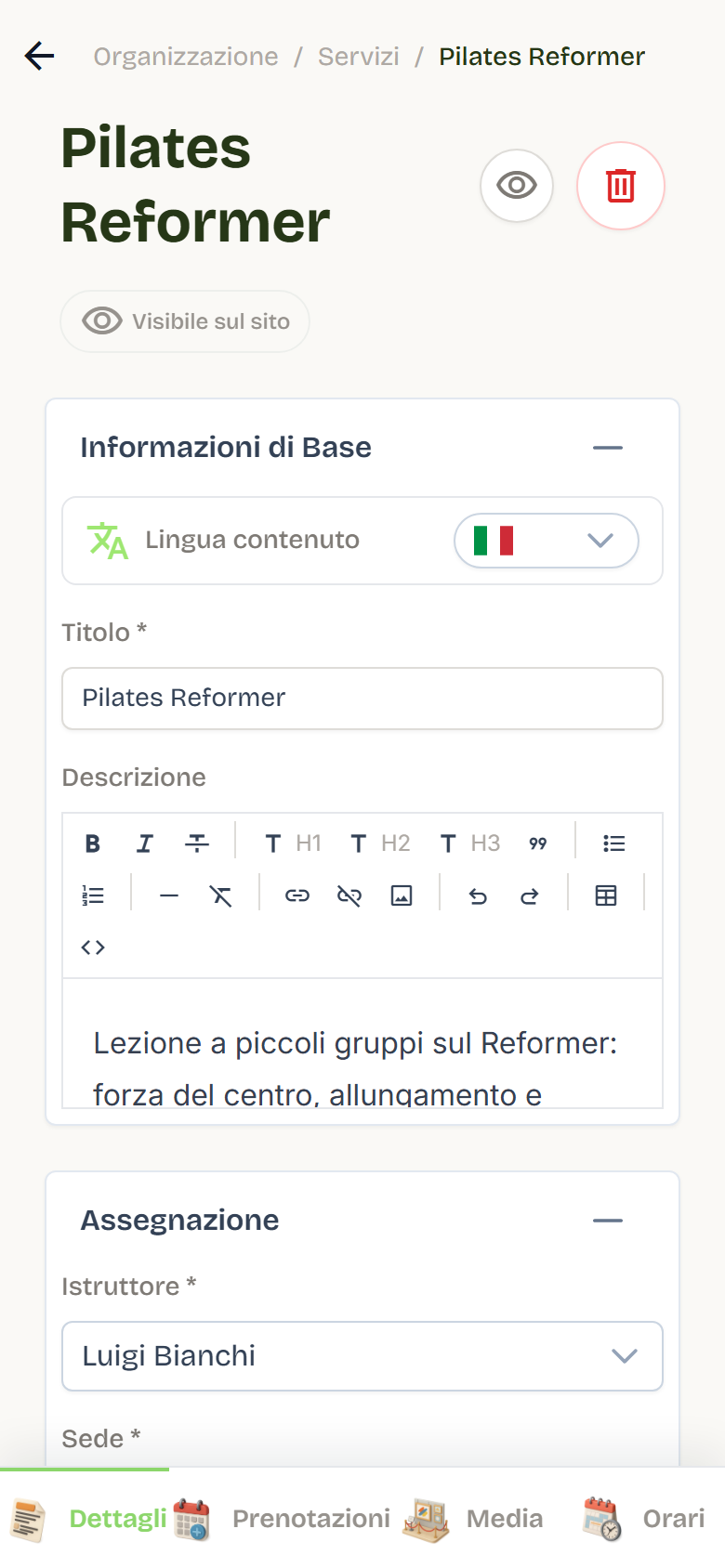
Details
- Basic information:
- Title: per language, required; editable even after publishing;
- Description: formatted text, per language.
- Assignment:
- Instructor: the professional linked to the service;
- Location: where the service takes place.
If there are no professionals or locations, Flo tells you to create them first.
Bookings
- Service booking availability: enable Bookable to allow bookings. Requires the Bookings module to be active.
- Plans enabled for booking: with the Subscriptions module active select one or more plans; without linked plans the service is not bookable.
- Online payment: enable and fill in Gross price, VAT rate, VAT nature (with 0 rate) and Currency. Without a price the service stays on the subscription-or-entries flow.
- Booking rules: summarizes the notice period and refund configured in Activity.
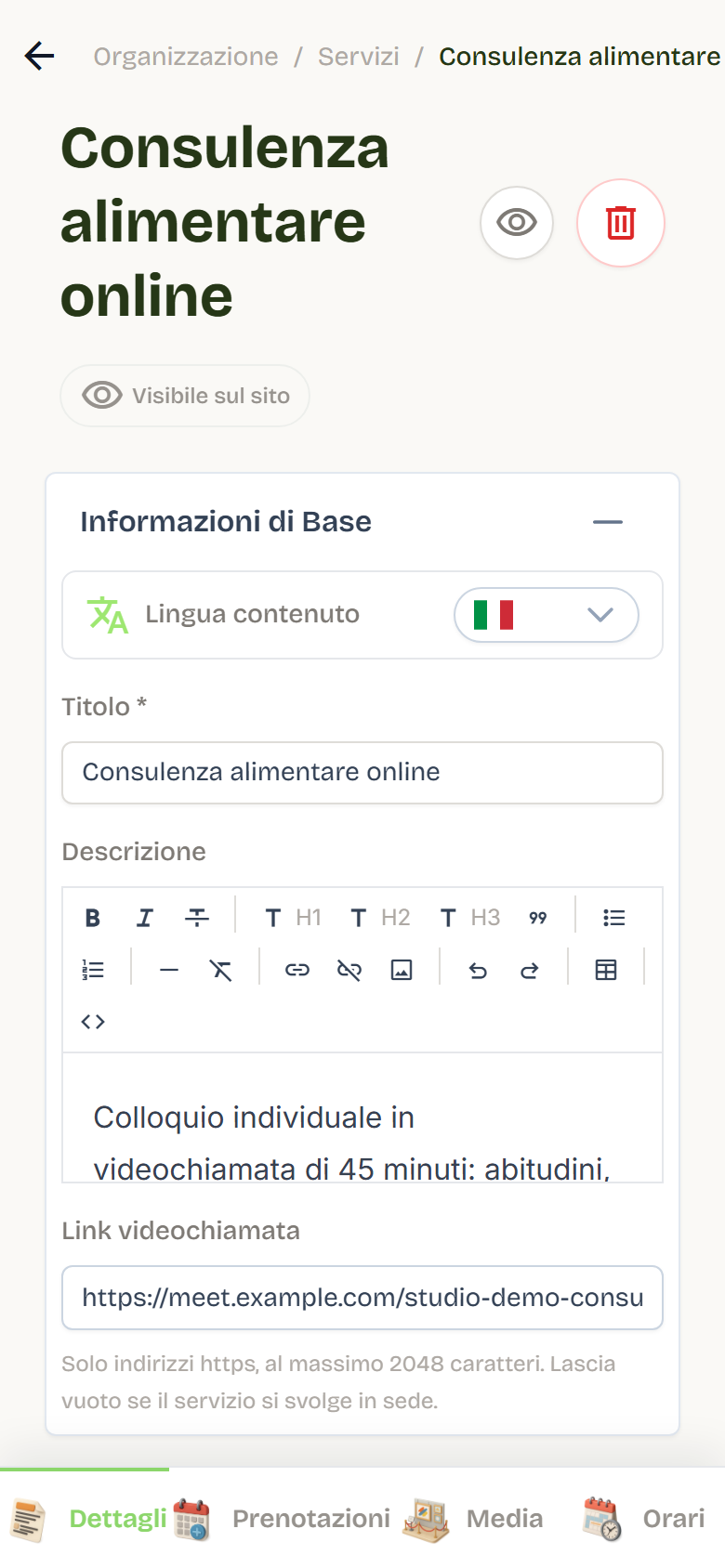
- Video call link: paste the https address of the room (Meet, Zoom, Teams…). Flo rejects non-https addresses or ones over 2048 characters; blank = in-person service. With a link the client sees the Online badge and the Join the video call button in My bookings, and the confirmation email and the reminder carry the link.
Media
- Image gallery: upload or reorder the service images.
- Save the service before uploading images: Flo warns "Save the service before uploading images."
Schedules
- Choose the Weekdays on which the service is active.
- For each day add Add Schedule: set the slot's start, end and Capacity.
- With Capacity 1 the slot is a one-to-one appointment: Flo says whether it's free or booked, without counts like 1/1. See One-to-one appointments.
- You cannot leave a day without times; start must precede end; two times with the same start on the same day are flagged.
- For non-bookable services capacity is hidden and the value stays stored.
- If you reduce an already-booked capacity, Flo opens Capacity conflicts detected with dates, times, booked counts, excess users and the application date (Bookings).
- If a capacity change is scheduled, the slot shows it with Cancel change.
Saving and visibility
- Press Save: Flo asks "Save and publish changes?" and changes are immediately visible online.
- The eye icon toggles Visible on website/Not visible on website: it concerns only the public site. A hidden service stays visible to staff and bookable when Bookable is active.
- If you exit with unsaved changes Flo warns you.
Viewing schedules
- View schedule opens the Schedules view with the service context.
- In the view you find the day selector, week navigation (Previous week/Next week) and the table with Activity, Time, Instructor and Status.
- Status shows bookability and spots; with capacity control active it also flags excess.
- For a one-to-one appointment the status reads Bookable or Booked, without the number of spots.
- The back button returns to Services.
Deleting a service
- Open the service and use the delete action.
- If there are blocks, Flo opens Deletion unavailable and explains the reasons: active plans, users with active subscriptions, subscription history, future bookings to manage, unverifiable plans.
- In the same window Users with an active subscription (user, plan) and Future bookings to manage (user, date, time, subscription, with the "Subscription expired" note when applicable) appear.
A service with only archived and unused plans, no subscriptions and no active bookings can be deleted; archived plans are flagged with Archived plan.
Deletion is a structural operation: if in doubt, hide the service from the site before deleting it.
Removed times and bookings
- If you remove a time or a whole day from the editor and save, Flo cancels that time's future bookings, credits the entry back and sends the cancellation email.
- In the client history the booking appears as Schedule removed.
- Past and already-cancelled bookings are not touched.
Good practices
- First publish title, description, images and assignment, then enable Bookable.
- Check each slot's capacity before making the service bookable.
- Use site visibility to prepare a service without showing it right away.
- After a schedule change check that no future bookings remain on removed times.
- Keep the service order updated with Edit Positions to match the site showcase.