Activity
- Here you enter the studio details clients see (name, email, phone, main location) and the booking rules.
- In the side menu it is under Organization > Activity, or from the Activity card in Administration.
- The most common task: update the phone number or notice periods and press the tab’s save button.
What it is
Module for configuring the business identity and the rules Flo uses in booking: general data, contacts, main location, notice periods, daily limit and information for clients.
The profile collects the business's public data; addresses and physical locations stay in the Locations module.
When it is visible
It appears under Organization > Activity in the side menu and under Administration > Activity when the configuration includes permission on the section (usually enabled Admin and Pro).
- If the Bookings module is active, the activity shows two tabs: Profile and Bookings.
- If the Bookings module is not active, only the Profile tab stays visible.
- If you don't see the section, the module is not active or you don't have permission.
Main industries
- Fitness
- Wellness
- Appointment-based services
- Configurations with bookings
Dependencies
Can use or link:
- Locations: the main location is chosen among existing locations;
- Bookings: notice periods, daily limit and texts shown in the booking flow;
- Subscriptions: studio plan limits combine with the activity rules;
- Services: services use the profile, contacts and information configured here.
Profile
- Open Administration > Activity and select the Profile tab.
- Fill in General details:
- Activity name (required, up to 200 characters);
- Public email (optional).
- Fill in Contacts and location:
- Phone number: use the international format (e.g.
+39 333 1234567). Flo also uses it for the WhatsApp link; - Main location: choose among the configured locations. If there are no locations, the Go to Locations link appears.
- Phone number: use the international format (e.g.
- Press Save activity details.
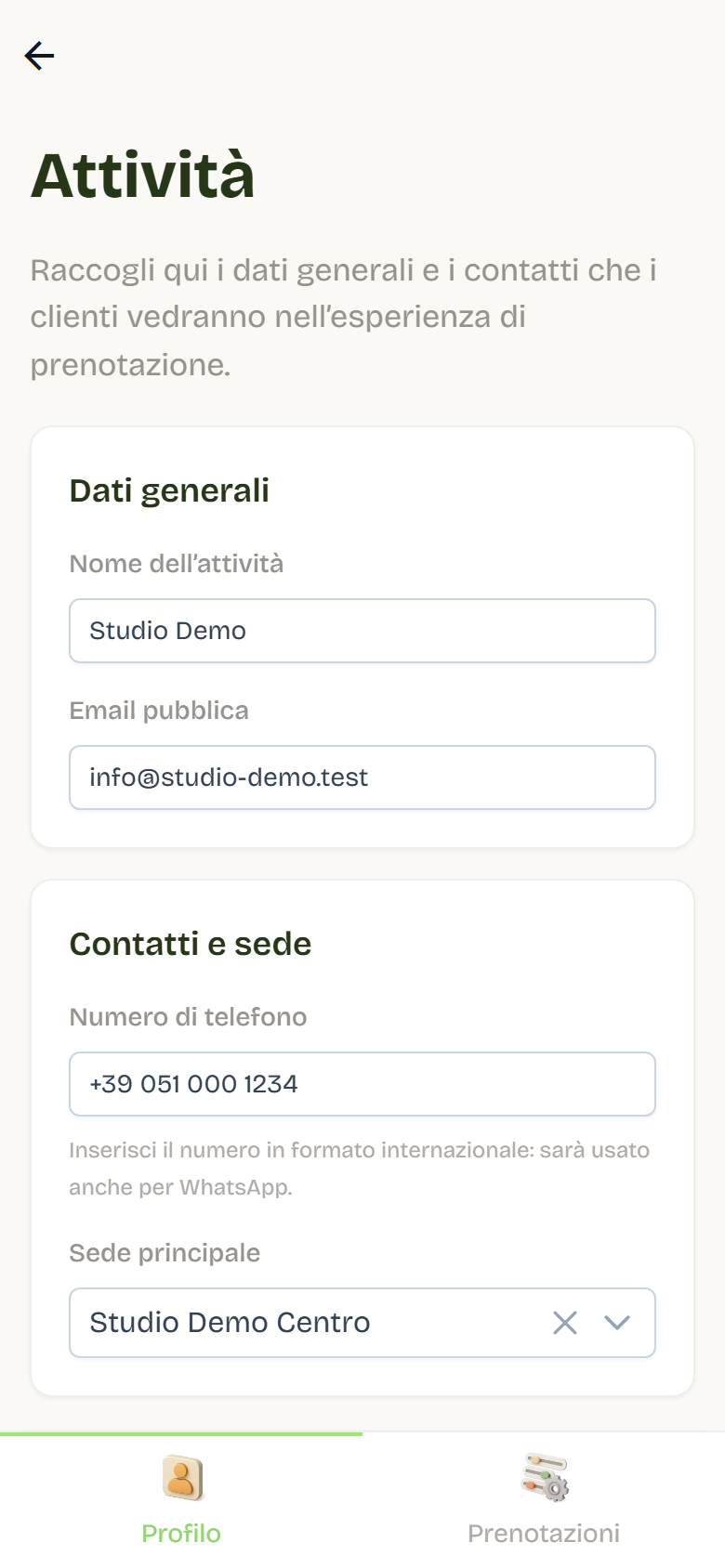
Interface note: "These details are used in the booking flow and client communications."
The SuperAdmin also sees the organization's slug and description in read-only form, with the "Not used" label.
Booking rules
- Open the Bookings tab.
- Open the Booking and refund notice rule:
- Booking notice: hours before the start within which new bookings are blocked (0 to 720, default 2);
- Cancellation refund notice: cancellation always stays possible, but within this threshold the entry is not returned.
- Open the Daily limit rule:
- standard mode: 1 booking per day;
- Custom mode ON: choose a maximum number (1 to 99999) or Unlimited;
- with Unlimited choose the scope: Unlimited on the same service or Maximum one booking per service.
- Press Save rules.
Notes:
- The rules apply to all services and combine with the studio plan limits.
- A plan with a specific limit takes precedence over the activity limit and counts only its own bookings.
- Bookings created by staff on behalf of a client can exceed the notice period and daily limit, with explicit confirmation.
- Overlap of two lessons stays blocked even for staff.
Lesson reminders
In the same Bookings tab, the Lesson reminders box emails clients before every booked lesson.
- Turn on Email a reminder before every booked lesson.
- In Hours in advance set how many hours before to send it: the allowed range is written under the field.
- Save: "Reminders saved." appears.
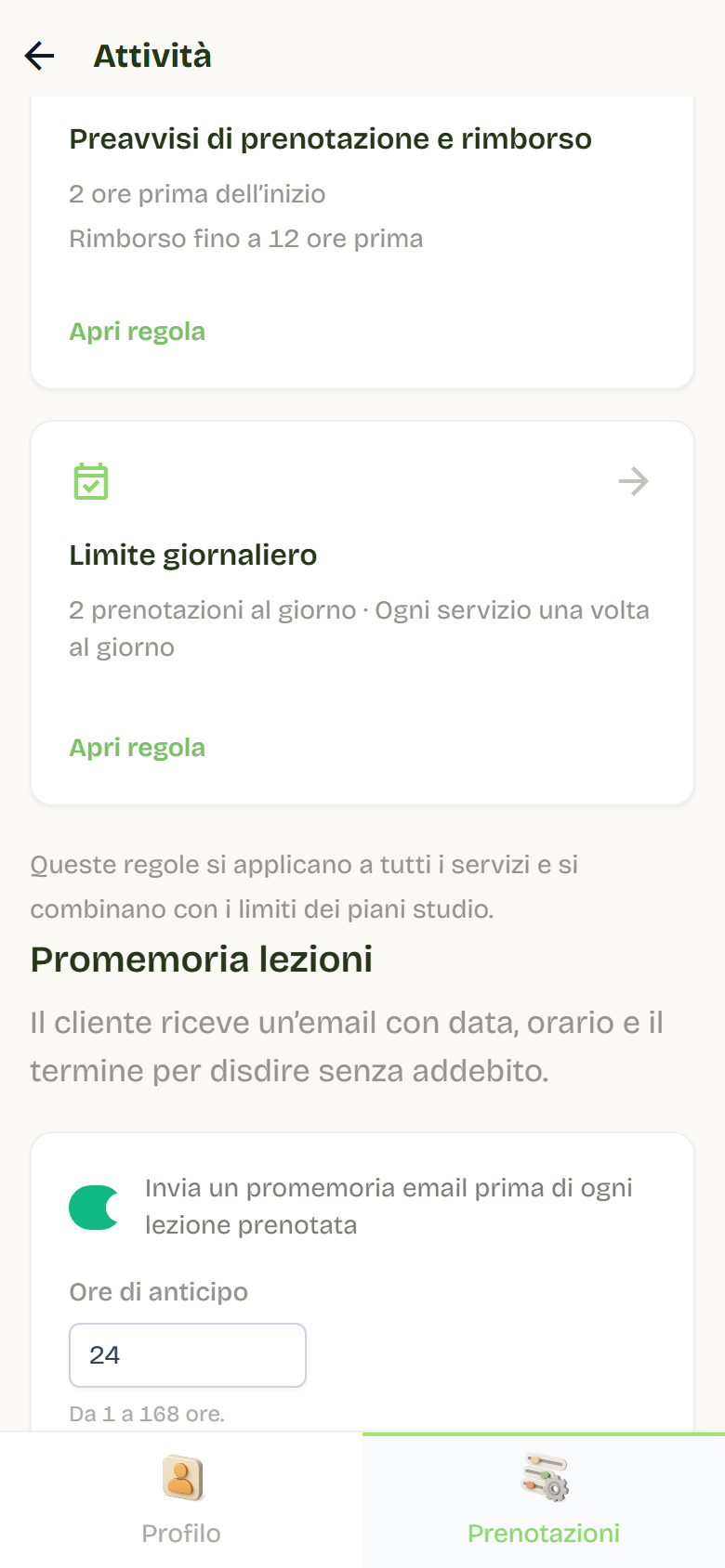
The reminder is sent only when email sending is configured for the studio.
Information for clients
Still in the Bookings tab, the Customer information section contains the messages shown during booking.
Available messages:
- How to buy entries;
- Booking rules.
The title shown on the tab is the message's first Title block.
To edit a message:
- Open the message tab.
- Add the available blocks: Title, Paragraph, Image, Button.
- Select a block to edit it; use the arrows to move it and the trash icon to remove it.
- For an image you can use Image URL or Upload image, plus Alt text and Image link.
- For a button fill in Button text and Button link.
- Check the Preview and press Save information.
Notes:
- The default "How to buy entries" message includes a WhatsApp button linked to the business phone number.
- Saved content replaces the default texts in the booking flow.
Good practices
- Keep the phone number in international format and update it when it changes.
- Configure notice periods before publishing service schedules.
- Check the daily limit together with studio plan limits to avoid unexpected blocks.
- Re-read client information with the preview before saving.